The editor window
Open Bloxma from the Plugins tab in Studio (Bloxma UI Editor). It opens as a floating, dockable window. Make it large, or dock it, to give the canvas room.
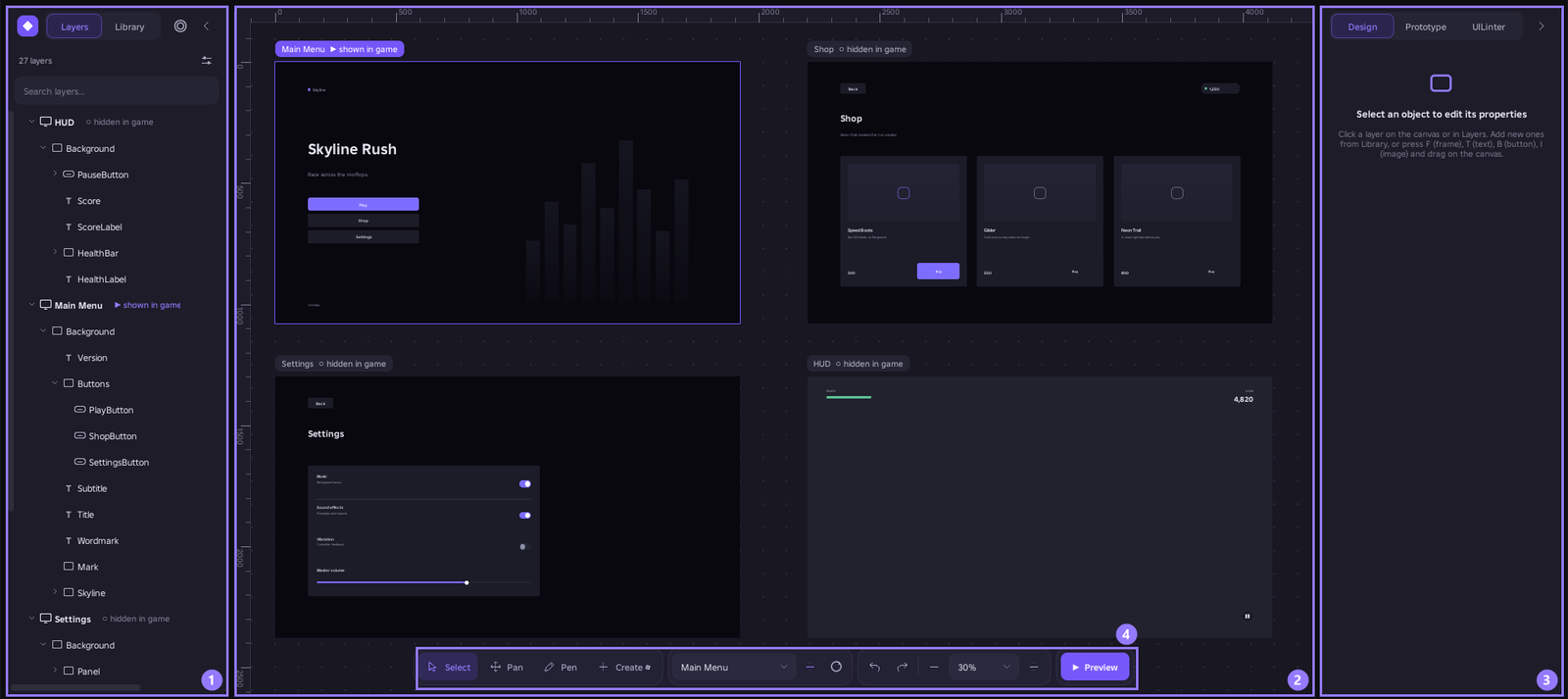
- Left: Layers (your hierarchy) and Library (everything you can add).
- Centre: the canvas, where every screen is shown as an artboard.
- Right: the Design, Prototype and UILinter modes, and the Inspector for whatever is selected.
- Bottom: the Select, Pan and Create tools, the screen and device pickers, Undo and Redo, zoom and Preview.


Drag the thin handles between panels to resize them. The ‹ and › buttons collapse a panel to a narrow rail, and on a narrow window only one panel stays open at a time. Right-click empty canvas and choose Hide UI (or press Ctrl+\) to leave only the canvas; the ☰ button brings the panels back.

Layers
The Layers panel is the real Roblox hierarchy. Drag a layer up or down to change what is in front, or onto a frame to move it inside. Double-click to rename. The eye hides a layer (for a screen, it hides it on the canvas only) and the lock stops you from grabbing it by accident. The ◇ button also shows small modifiers such as corners, strokes and layouts. Use the search box to find a layer by name.
The right-click menu includes Duplicate, Bring forward, Send backward, Bring to front, Send to back, Group and Ungroup. Groups are only a way of selecting layers together: grouping creates no Frame and changes no position or size. Ctrl+D duplicates a layer or a whole screen; a copy of MainMenu becomes MainMenu Copy.

The Library
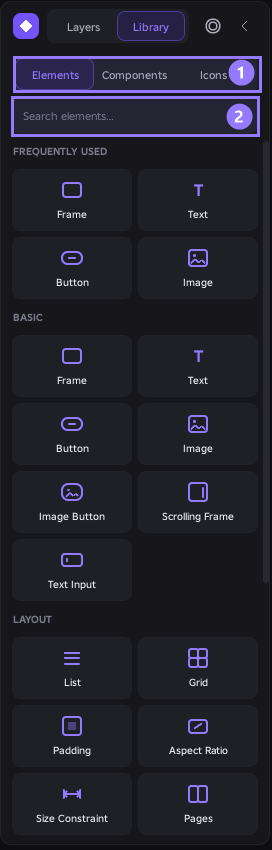
Drag an item onto a screen, or click it and then draw it. Drop it onto an existing frame to place it inside. Layout and style items apply to whatever is selected, so select a frame and then click them.
- Elements: Frame, Text, Button, Image, Image Button, Scrolling Frame and Text Input.
- Layout: List, Grid, Padding, Aspect Ratio, Size Constraint and Pages.
- Style: Corner, Stroke, Gradient, UI Scale and Text Size Limit.
- Other: Canvas Group, Viewport Frame and Flex Item.
- Components and Icons have their own tabs.
Shortcuts: F draws a frame, T text, B a button and I an image.
The Inspector
The Inspector shows designer-friendly controls over real properties. When several layers are selected it edits all of them, and shows Mixed where their values differ.
- Layout: pin a layer to the left, right, centre, both edges (stretch) or scale; set width and height as Fixed pixels, Fill % of the parent or Fit content; keep the aspect ratio; set a minimum and maximum size; add Auto layout and padding to a frame (Row, Column, Grid or Pages, with gap, padding and alignment). The Align control is a 3×3 grid of alignments, Anchor Position sets the layer’s
AnchorPointwithout moving the layer, and Distribute spaces three or more layers with equal gaps. - Appearance: opacity and corner radius (Pill gives fully rounded ends).
- Fill: a solid colour, a gradient (click the gradient bar to add stops, drag them and pick colours inline) or an image. A Frame can become a picture, and you can switch between ImageLabel and ImageButton without losing children, strokes or interactions.
- Stroke and Text: font, weight, size, colour, alignment and shrink-to-fit.

Settings (⚙) → Advanced adds a raw property editor, and Studio’s own Properties window always works too.
Making it responsive
New layers are stored with Scale position and size relative to their parent, so they look the same in Studio and in-game at any resolution. Text stays in pixels; turn on Shrink to fit box for text that must scale. You can switch the Scale default off in Settings (⚙).
- Pin each layer to the edges it should follow.
- Choose Fixed, Fill % or Fit content for width and height.
- Use the aspect ratio and the minimum and maximum size so nothing gets squashed.
- Switch the device menu between Desktop, Tablet and Mobile and watch the layout adapt.


Components and variants
Select a layer, right-click and choose Create component (or use the Inspector). The layer becomes a Component Set with one Default variant.
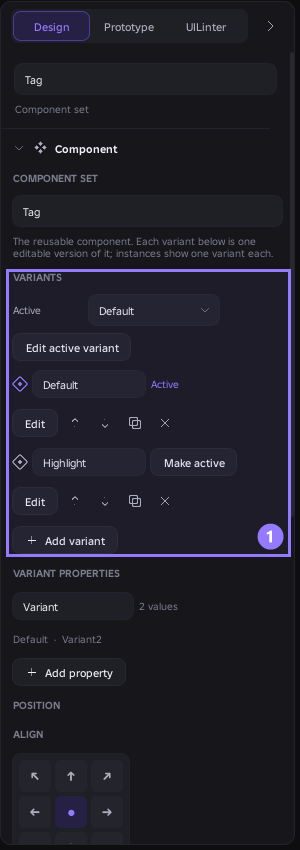
- Variants: Add variant makes another version, such as Hover, Pressed or Disabled. Each variant is its own real, editable UI. Variant properties (State, Type, Size and so on) describe what each variant is, and only the combinations you create exist.
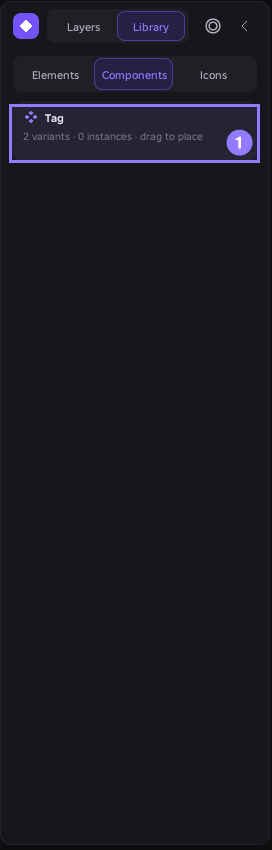
- Instances: drag copies from Library → Components. Each instance owns its current variant, which you switch in the Inspector, and none affects another. Each keeps its own name, position and text.
- Updating: edit the master or a variant, then press Update instances to see the change on the canvas. Preview and Play are always current.
- Interactions: interactions added inside a variant belong to the component, so every instance has them. Add the Change To action to switch an instance to another variant, for example Unchecked to Checked on click. In Prototype mode you can also drag a layer’s connect handle onto another variant of the same component to create it.
- Position and alignment: select a component to move all its contents together with X and Y, or align it as a whole with the 3×3 Align control.
States
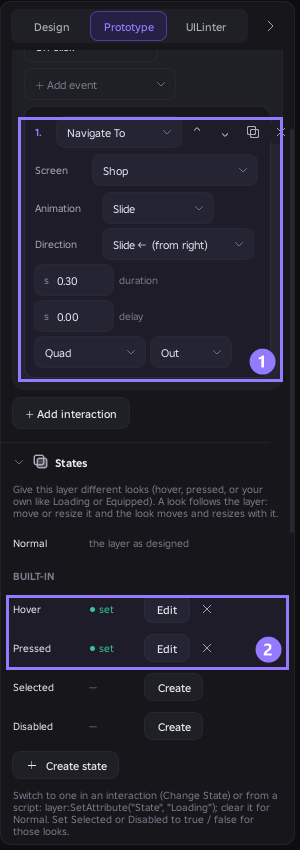
States give a layer different looks: Hover, Pressed, Selected and Disabled, plus your own such as Loading or Focused. In the Inspector open States, press Create, change the layer as you normally would, then press Done. A look stores only how it differs from the layer, so if you later move, resize or duplicate the layer, its looks follow it.
Press Create state to make your own, and rename, duplicate or delete them freely. Switch to a state with the Change State interaction, or from a script with layer:SetAttribute('State', 'Loading') (clear the attribute to return to Normal). In your game, set the attributes Selected or Disabled on a layer to drive those looks.
Animation
Pick when an animation plays (when shown, click, hover, hover end or press) and a preset: fade, slide, scale, pop, spring, bounce, move or rotate. Animations use TweenService and have duration, delay and easing controls. The ▶ button previews an animation right on the canvas.

Prototyping
Switch the right panel to Prototype mode to connect screens.
- Connect screens: select a button and drag the purple dot onto another screen. This creates On click → Navigate To. Edit the transition (for example Slide ←, 0.3 s, Ease Out) in the Inspector.
- Triggers and events: a trigger such as On click or On hover holds an ordered list of events. They start from top to bottom and do not wait for each other, so a sound can play while a screen slides. Events are Navigate To, Open, Back, Close, Show, Hide, Toggle, Change State, Play Animation and Play Sound (enter a sound asset ID and press Test sound). Use ↑ and ↓ to reorder, ⧉ to duplicate, ✕ to delete and + Add event to add. A yellow ⚠ line explains anything missing, such as “Navigate To requires a target screen.”
- Selecting connections: with the Select tool in Prototype mode, click a purple node or a connection line to select it. Shift+click adds or removes items, and dragging on empty canvas draws a selection box. The right panel edits what you picked, and several connections can be edited together. Delete removes only the selected interactions, never the layers.
- Start screen: click a screen’s empty area and choose a Start screen in the Screen section.

What the game shows
The canvas always shows all your screens. The game shows only the selected screen (marked ▶ shown in game), and Bloxma saves every other screen it manages as Enabled = false; the runtime switches between them when a prototype navigates. Screens marked Always on in the Inspector, such as a HUD, are never touched. Prototype links point at a screen’s identity, so renaming a screen never breaks them.
The first time you add an interaction, Bloxma adds a small readable runtime to your game: ReplicatedStorage.BloxmaUIEditor_Runtime and StarterPlayerScripts.BloxmaUIEditor_Boot. Your UI never depends on them and you can delete them.
Preview
▶ Preview runs your prototype inside the editor at the selected device size: hover, press, navigate, overlays and animations. Choose Exit preview to go back. Preview does not run your own game scripts.
UI Linter
Switch the right panel to UILinter and press ANALYZE UI. Bloxma checks spacing, alignment, sizing, typography, visual consistency, components, accessibility, prototype links and responsiveness, and gives the UI a quality score from 0 to 100. Each finding shows how confident the check is and whether it is a measured fact or a judgement.
- Click an issue to select the affected layers and see the problem drawn on the canvas.
- FIX ALL SAFE applies only fixes that are certain. Other suggestions are applied only when you tick them and press FIX SELECTED. Any fix is one Ctrl+Z.
- After you change the design, press RE-SCAN; Bloxma never re-scans on its own. You can ignore an issue, similar issues, a rule or a whole category.


Icons and the Pen tool
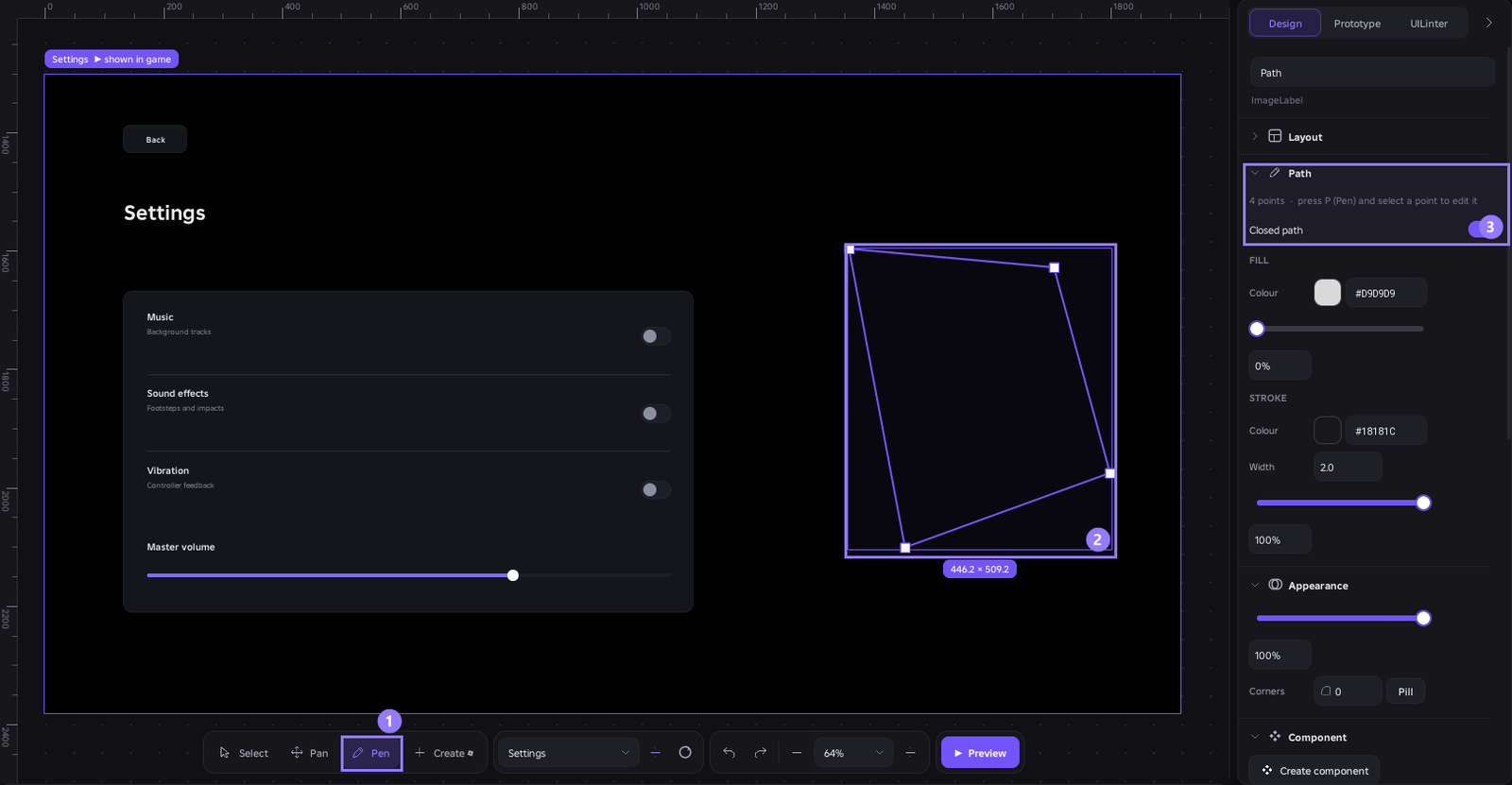
Library → Icons contains 1,689 searchable icons in outline and bulk styles, with an All, Outline and Bulk filter. Search by name or category, for example arrow or money. Click or drag an icon in and it becomes a normal, recolourable image layer. Icons are drawn from an in-memory picture, so they render in the editor but not in a published game unless you upload the icon as an image asset.

The Pen tool draws custom vector-style shapes directly on the canvas.
Keyboard shortcuts
Shortcuts work while the canvas has focus.
- Tools: V select, H hand, F frame, T text, B button, I image. Hold Space and drag to pan.
- View: Ctrl+scroll zooms, Ctrl+0 resets to 100%, Ctrl+1 fits all, Ctrl+2 fits the selection, Ctrl+\ hides or shows the interface, Shift+R shows or hides rulers.
- Edit: Ctrl+D duplicate, Ctrl+C, Ctrl+X and Ctrl+V copy, cut and paste, Ctrl+G group, Ctrl+Shift+G ungroup, Shift+A add auto layout, Delete, Ctrl+Z undo, Ctrl+Shift+Z redo.
- Order: [ and ] move a layer back or forward; add Ctrl to send it to the back or front.
- Moving: arrow keys nudge (Shift for 10 px). Enter edits text or selects children, and Shift+Enter selects the parent.
- While dragging: hold Ctrl for no snapping or nesting, Shift to lock an axis (or keep proportions when resizing), and Alt to resize from the centre.
Talegates account (optional)
You never need an account to design. If you have one, open Settings (⚙) → Talegates account → Sign in with Talegates to connect Bloxma to it.
- Bloxma shows a short code and the address talegates.io/link. Studio asks once whether the plugin may contact
talegates.io; allow it. If you refuse, Bloxma keeps working and you can allow it later in Studio’s plugin management. - Open the address, log in, enter the code and press Approve. Only approve a sign-in you started yourself. The code expires after 10 minutes.
- Bloxma signs in by itself and shows your plan (Free, Premium or Lifetime). Refresh plan asks Talegates again, and Sign out ends the session here and on Talegates.
Bloxma contacts Talegates only for these actions, plus one quiet plan re-check when you open the settings menu and the plan is due. Nothing is requested when the plugin starts and nothing runs in the background. If Talegates cannot be reached you stay signed in and keep working; your last known plan applies for as long as Talegates allowed, then you are treated as Free. Sign-in details are kept in Studio’s plugin settings and removed when you sign out. Your password is never seen by the plugin. See the Privacy Policy for how we handle your data.
