Your first menu
You will build a main menu with a panel and three buttons: Play, Settings and Quit.
- Open a place in Roblox Studio and open Plugins → Bloxma UI Editor. Make the window large or dock it.
- Click + Screen. Double-click the new screen in Layers and rename it MainMenu. Pick Desktop in the device menu.
- Press F and drag on the screen to draw a frame. Rename it Panel. Because new layers use Scale, it looks the same at any resolution.
- With Panel selected, open Layout → Auto layout and choose Column. Set a gap and some padding so the buttons stack neatly with room around them.
- Press B and drag inside Panel to draw a button. Double-click its text and type Play. Press Ctrl+D twice to duplicate it, then change the text of the copies to Settings and Quit.
- Select the three buttons (click one, then Shift+click the others) and set the width to Fill % so they follow the panel’s width. Because several layers are selected, one edit changes all three.
- Style them. In Appearance set the corner radius (choose Pill for fully rounded ends), in Fill pick a colour or a gradient, and in Text choose a font and size.
- Switch the device menu to Tablet and Mobile to see how it adapts. Adjust the panel until it looks right on all of them.
- Save with File → Save. In the Explorer you will find MainMenu under
StarterGui, containing Panel and threeTextButtonobjects. They are ordinary Roblox objects you can edit with or without Bloxma.

A responsive HUD
A heads-up display has to stay in place on every screen size. You will build a top bar with a coin counter.
- Click + Screen and name it HUD. Select the screen and, in the Inspector, turn on Always on so Bloxma never hides it when you add prototype screens later.
- Press F and draw a bar across the top of the screen. In Layout, set the horizontal pin to Left & Right (stretch) and keep the height Fixed.
- Add Auto layout → Row to the bar with a small gap and some padding, so whatever you put inside lines up from the left.
- Open Library → Icons, search for money and click an icon to add it. Icons are recolourable image layers, so change its colour in the Inspector.
- Press T and draw a text layer beside the icon. Type a number. In Text choose a size and turn on Shrink to fit box so longer numbers stay inside.
- Select the icon and turn on Keep aspect ratio so it is never squashed. Use Min / max size if you want it to stop growing on very large screens.
- Go through the device menu (Mobile, Tablet, Desktop, Ultrawide). The bar should stay attached to the top edge and keep its contents together. Turn on Clip to screen in Settings (⚙) to see exactly what players will see.

Icons are drawn from an in-memory picture. Before you publish a game, upload the icon as an image asset so it also shows in-game.
A reusable button with hover and press looks
- Draw a button as in the first tutorial and style it. Name it PrimaryButton.
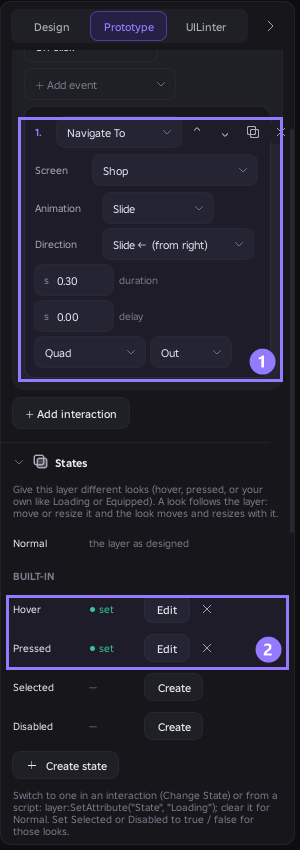
- In the Inspector open States → Create and choose Hover. Change the button as you normally would, for example a lighter fill, then press Done. Repeat for Pressed with a slightly darker fill. The looks animate automatically.
- Open the Animation section, choose the hover trigger and a preset such as pop. Press ▶ to preview it on the canvas.
- Right-click the button and choose Create component. It becomes a Component Set with a Default variant.
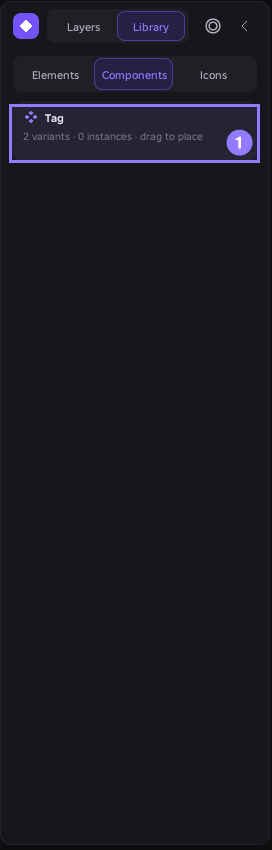
- Open Library → Components and drag copies of PrimaryButton onto your screens. Change the text of each copy: every instance keeps its own name, position and text.
- Change the master, for example its corner radius, and press Update instances in the Inspector. Every copy updates and keeps its own text.
- Press ▶ Preview, move the pointer over a button and click it to see the hover and press looks. Choose Exit preview when you are done.
Navigate between two screens
- Start with a MainMenu screen that has a Settings button, and add a second screen named Settings with a Back button.
- Switch the right panel to Prototype.
- Drag the purple dot on the Settings button onto the Settings screen. Bloxma creates On click → Navigate To Settings.
- With the button selected, open Interactions and set the transition, for example Slide ←, 0.3 s, Ease Out.
- On the Settings screen, select the Back button and add an On click event with the Back action.
- Optional: on the Settings button’s click trigger, press + Add event and choose Play Sound. Paste a sound asset ID and press Test sound. Use ↑ to move it to the top so it starts first.
- Click the empty area of MainMenu and choose it as the Start screen.
- Press ▶ Preview and click through. When it works, press Play in Studio. The first time you add an interaction, Bloxma adds its small runtime to your game for you.

Check your UI with the UI Linter
- Open one of your screens and switch the right panel to UILinter.
- Press ANALYZE UI. You get a score from 0 to 100 and a list of issues grouped by category.
- Click an issue. Bloxma selects the affected layers and draws the problem on the canvas.
- Press FIX ALL SAFE to apply only the fixes Bloxma is certain about. For suggestions that need your judgement, tick them and press FIX SELECTED.
- If you do not like a change, press Ctrl+Z. Every fix is one undo step.
- Press RE-SCAN to see your new score.


Sign in with your Talegates account
You never need an account to design. Signing in lets Bloxma show your plan.
- Open Settings (⚙) and choose Talegates account → Sign in with Talegates.
- Studio asks once whether the plugin may contact
talegates.io. Allow it. If you refuse, Bloxma keeps working and you can allow it later in Studio’s plugin management. - Bloxma shows a short code (for example
VHMQ-ZQBF) and the address talegates.io/link. Open the address, log in, enter the code and press Approve. Only approve a sign-in you started yourself. The code expires after 10 minutes. - Within a few seconds Bloxma signs in by itself and shows your plan: Free, Premium or Lifetime.
- Use Refresh plan to check again, or Sign out to end the session.

Don’t have an account yet? Create a free one. Questions? See the documentation or contact support.